How to Number Documents and Case Files
Many government agencies, law firms, notary offices, and companies need to paginate documents consecutively.
It is common practice to work with large runs of preprinted forms and templates — for instance, several
thousand sheets already printed via offset, where only the sequential numbering still needs to be applied.
This is a fairly straightforward task for a numbering program, but sometimes — in addition to a
consecutive number on each folio — you
also need to print the book or volume number that contains those numbered folios.
In those cases, there will be two variable data fields: one for the volume number and another for the folio number within that volume.
With Numerador Custombit, this is both possible and very straightforward:
- Select a template
- Set the starting number
- Print hundreds or thousands of consecutive pages
Below we will walk through a complete example, starting with a preprinted template that represents a folio.
1) First Step — Configure Print Settings and Set the Sheet Count for the Job
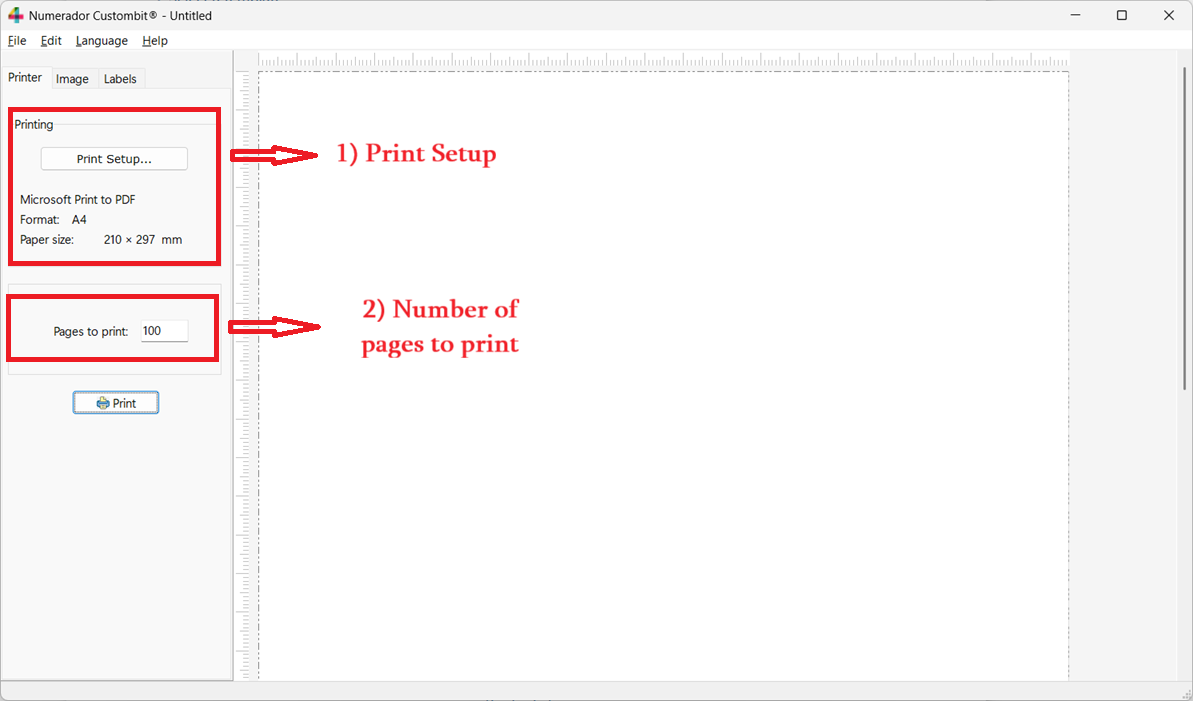 Printer Setup
The screenshot shows the virtual printer "Print to PDF" selected to generate a .pdf file that will later be sent to the physical printer.
A run of 100 sheets has also been set for this job.
2) Second Step — Load a Background Image to Use as a Guide for Positioning Numbering Fields
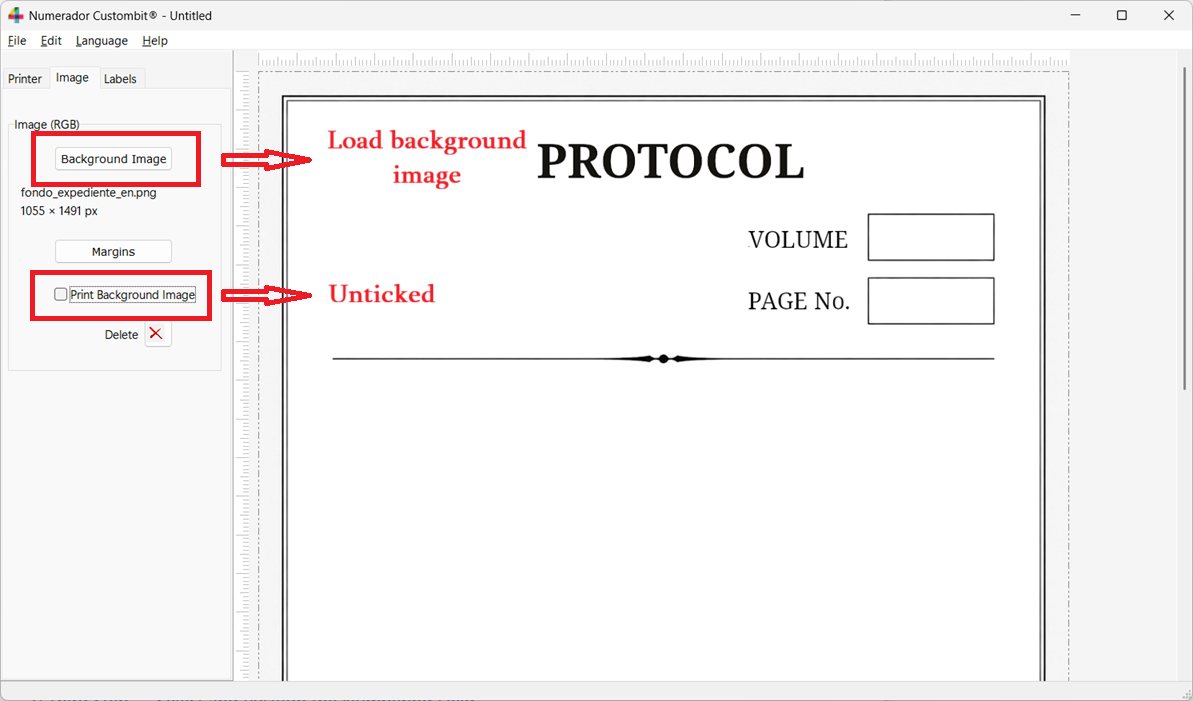 Background Image Selection
Here, a background image has been loaded to serve as a positioning guide.
The "Print background image" checkbox has been unticked, since in this case there is no need to print the background
template — the sheets are already preprinted — only the numbering fields.
3) Third Step — Select and Position the Numbering Label
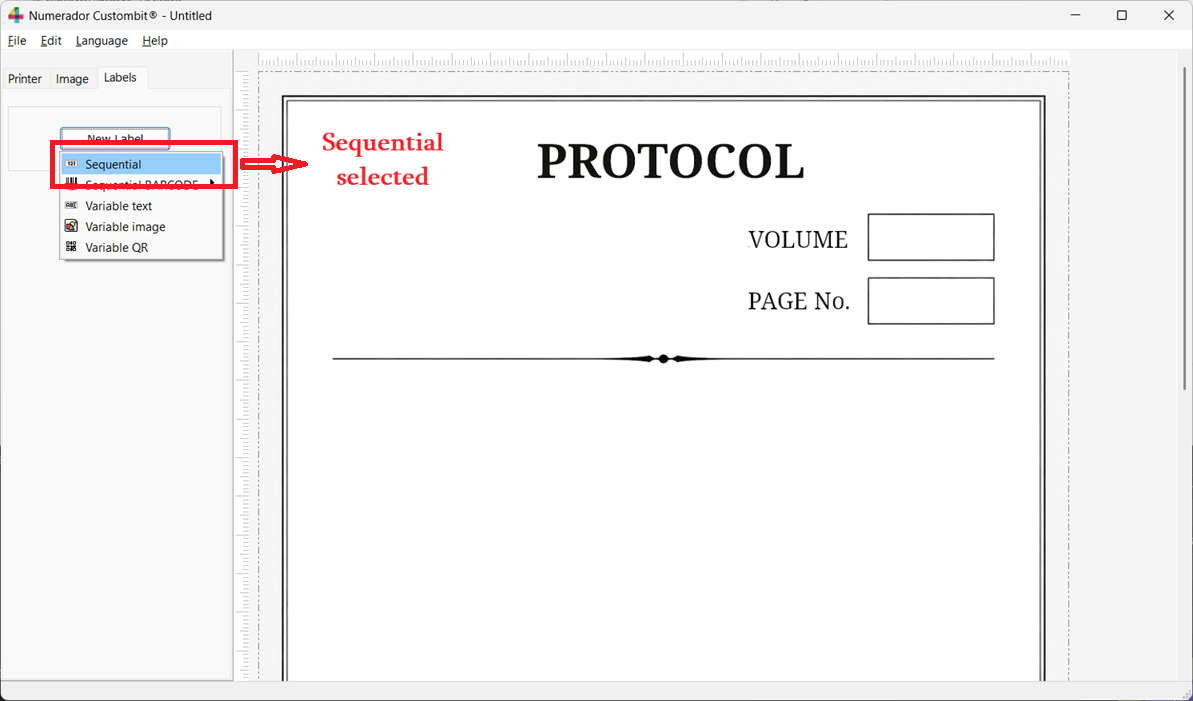 Selecting a Numbering Label
This shows how to select a numbering label.
The cursor will change to an arrow with a rectangle below it,
indicating that the program is waiting for you to place it on the layout panel.
4) Fourth Step — Set the Properties of a Numbering Label
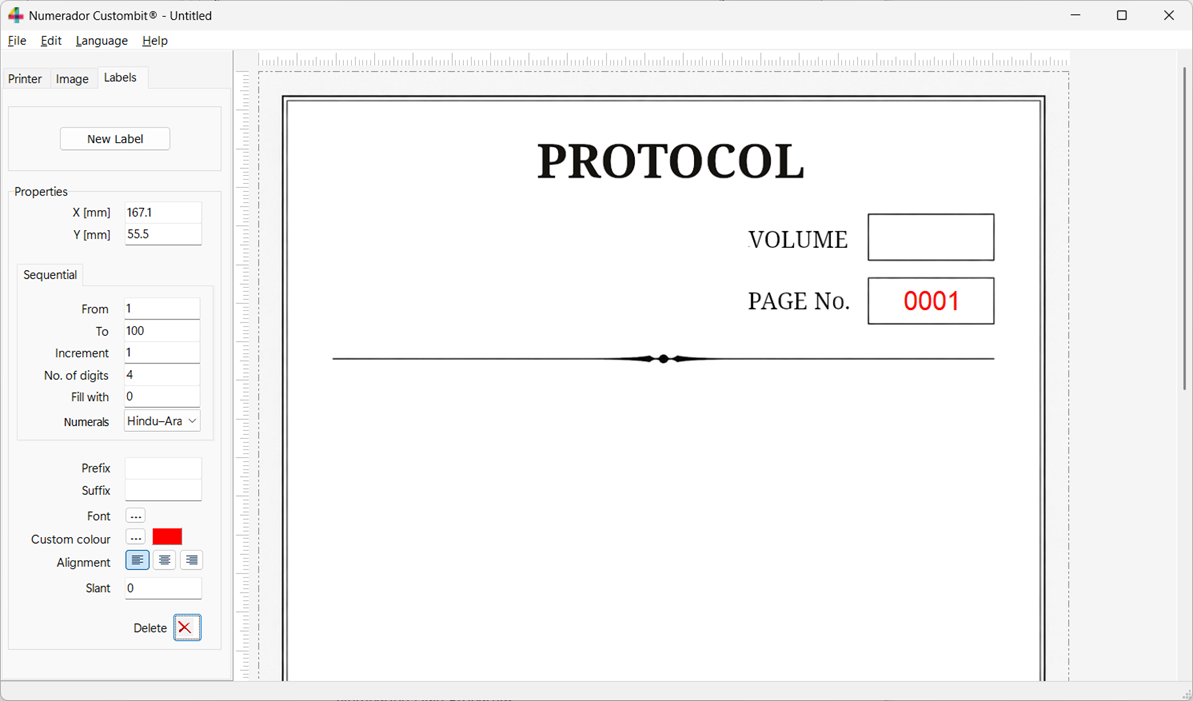 Numbering Label Properties
Let us take a closer look at some of the most important properties of a sequential numbering
label. We will start with the second label — the one that numbers folios within the volume — since
it is the simplest and most typical use case. For the label corresponding to the volume number,
we will later explore some of the special features in Numerador Custombit that tend to come in handy.
For this standard label, the available settings are:
- Position: After selecting the label type,
click on the layout panel to place it at the desired position.
To fine-tune its placement, drag it with the mouse, or for precision adjustments,
hold the Ctrl key and nudge it up, down, left, or right using the arrow keys.
- From and To: Define the numbering range
— the starting and ending values. In this case, 100 sheets of the volume will be printed,
numbered 1 through 100. Any other range could be set as needed — for example, 401 through 500.
- Increment: The step between consecutive numbers.
Here, a value of 1 produces the sequence 1, 2, 3, …, 100.
- No. of digits: Sets the number of digits for each number.
Values will be zero-padded on the left as needed.
- Fill with: The character used to fill leading positions
to reach the specified digit count. In this case, zeros.
- Numerals: Hindu-Arabic — the standard numbering style.
A variation will be shown in the next example.
- Prefix and Suffix: Not used in this case,
but these allow you to add text before or after each number (e.g., a prefix like "Vol." or a suffix like "/2026").
- Font: Lets you choose the desired typeface.
- Custom Color:
Sets the text color of the label text. Here, red was chosen for better visibility.
- Alignment:
Allows you to align the generated numbers left, center, or right — important when working with preprinted forms where positioning is critical.
- Slant:
Expressed in degrees. Useful when numbers need to appear vertically or at an angle. Left at 0° in this example.
This covers 99.9% of cases where you need to number each folio of a document.
At this point, all that remains is to Print (in our example, generating a .pdf file
to send to the physical printer). Now, as promised, let us look at how to configure
the numbering label dedicated to the volume number.
5) Fifth Step — Set the Properties of the Label Dedicated to the Volume Number
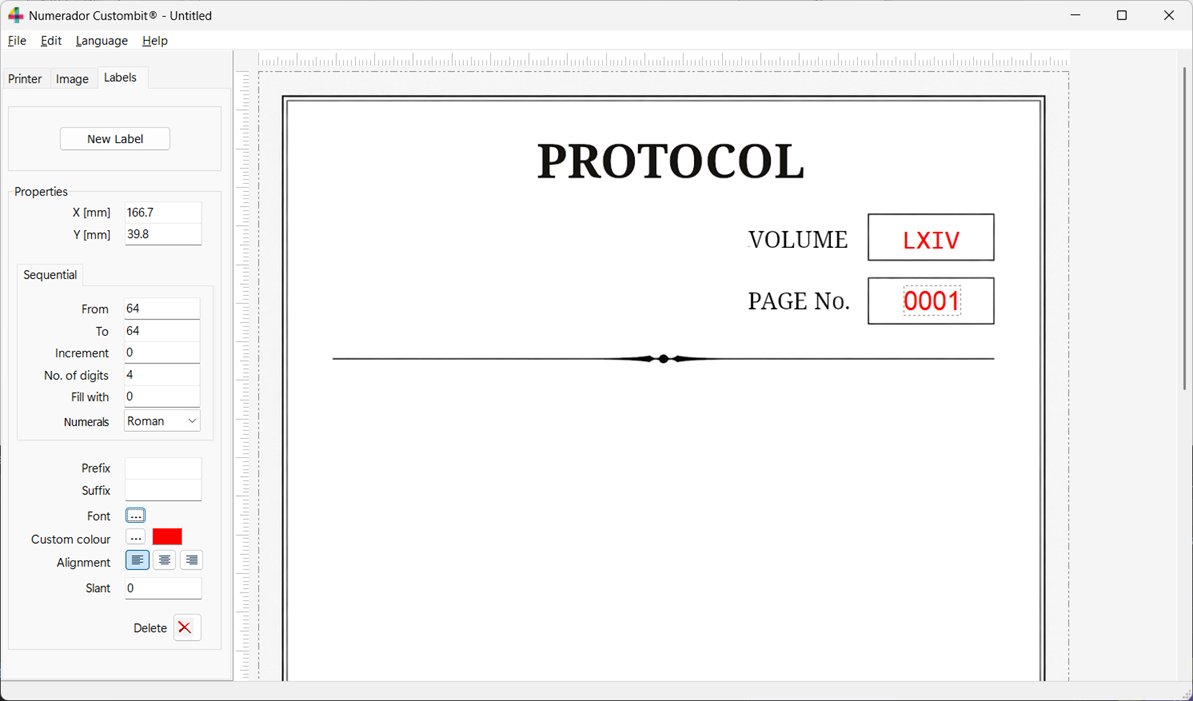 Numbering Label with Roman Numerals
To add some variety to this example, we have used a distinctive feature of Numerador Custombit:
it can automatically generate sequential numbering using Roman numerals.
Another point worth noting: since the volume number stays the same across all 100 folios in the run, the following was configured:
- From and To: The same value in both fields.
Since the volume carries the Roman numeral
LXIV
on every folio, the same value was entered in both
From and To, with an Increment of 0, telling Numerador to keep it constant throughout the run.
Below is the generated .pdf file as an example. The "Print background image" checkbox was ticked again
before generating it, so the full layout can be seen.
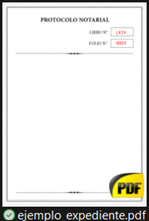 Sample Printed Document